

WHAT TO YOU NEED HELP WITH?:
Entering Data
Previewing Graph
Saving Graph
What type of file to save
Word Document example
MAKING YOUR GRAPH USING http://nces.ed.gov/nceskids/graphing/
- Go to http://nces.ed.gov/nceskids/graphing/
- Click on "START MAKING GRAPHS"
- Choose which type of graph is needed. Click on a pie graph for our Mitosis Lab Data...
- Now your screen should look like this:

- Next, click the data tab. It is being pointed to in the picture above.
- Now, Enter your data.

- If needed, preview your graph to make sure it is correct.

- Next, Click on the Print and Save tab.
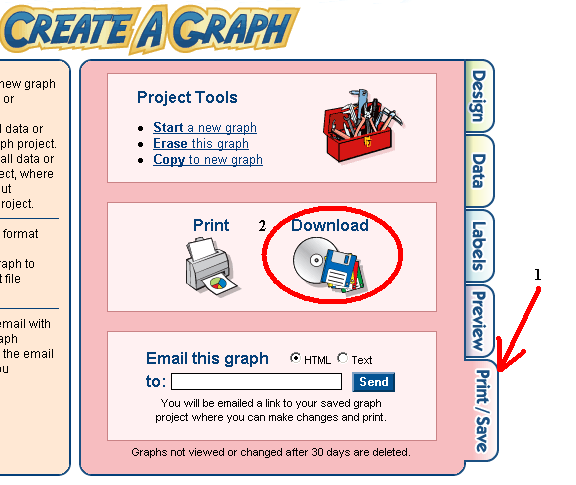
- Now click on "download" which is circled in the above picture.
- This is the next screen you will see:
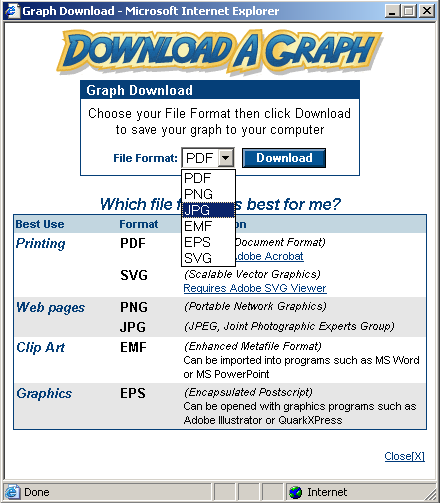
- Choose JPG from the dropdown menu, then click download.
- This is the next screen you will see: Click Save!
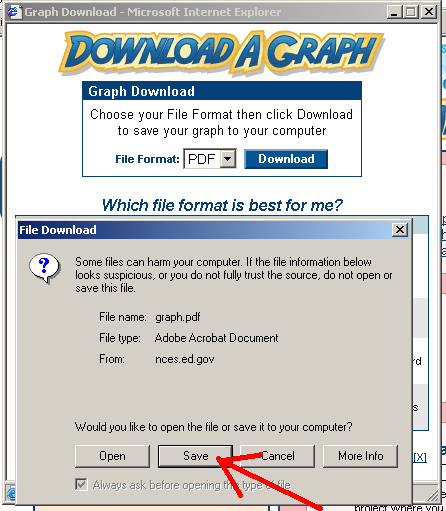
- On the next screen, browse until you find the folder that you want to save your materials in. I would suggest your student number.
- Once you have saved this graph to your student number. It will be possible to open it and cut and paste it into a word document. This would let us put several graphs on one page.
- Here is an example of a word document with several graphs.

Email Mr. Mugan | Created November 1, 2005. | Strive to be happy.
Copywrite 2004, Paul Mugan. All rights reserved | Permission for free use is given for educational purposes.
I highly recommend Intermediate Web Design taught by Jim Erbe online through UW Stout
Thanks: cooltext.com | flashbuttons.com | flamingtext.com | dynamicdrive.com | quia.com
Copywrite 2004, Paul Mugan. All rights reserved | Permission for free use is given for educational purposes.
I highly recommend Intermediate Web Design taught by Jim Erbe online through UW Stout
Thanks: cooltext.com | flashbuttons.com | flamingtext.com | dynamicdrive.com | quia.com